# How to Keyword Stake on Presearch Web3

1. Log in to your [presearch account](https://presearch.com/), you can follow the tutorial here: [Presearch Web3 Login](https://docs.presearch.io/presearch-web-3.0/presearch-web3-login)
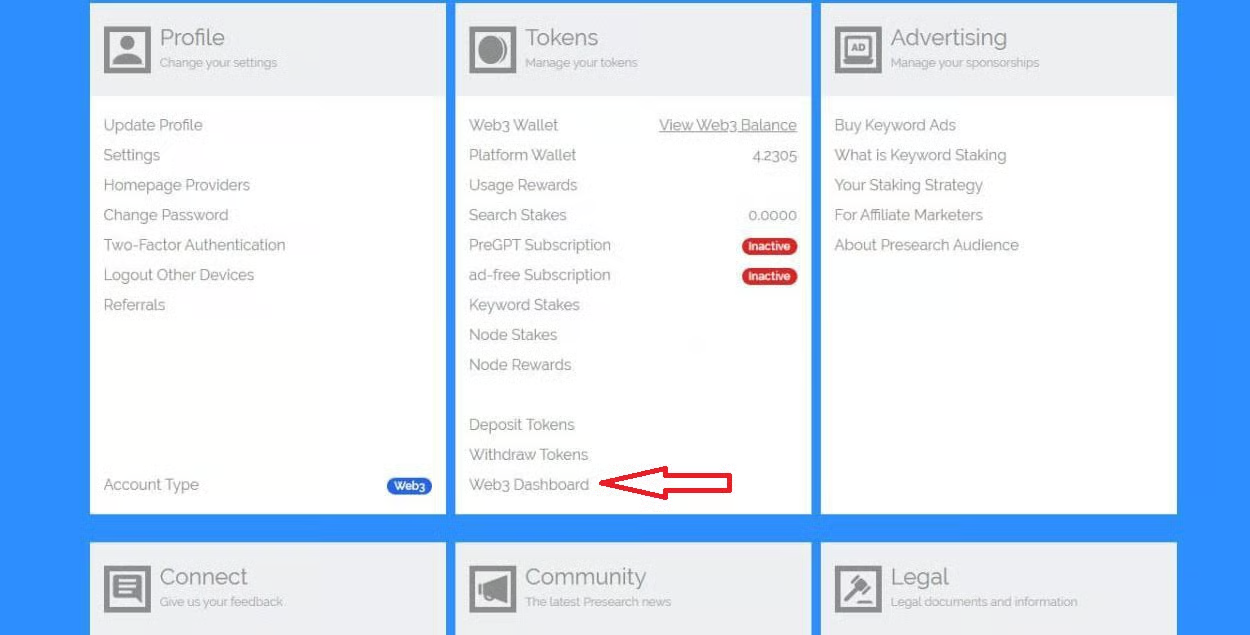
2. Enter your account menu: [My Account](https://account.presearch.com/) and click on Web3 dashboard.

<figure><img src="https://881106330-files.gitbook.io/~/files/v0/b/gitbook-x-prod.appspot.com/o/spaces%2F-MS4taefedlYJ7UrPHAo%2Fuploads%2F5V0ptexOWzRdGMJYnsPS%2Fimage.png?alt=media&#x26;token=ee31b493-7934-4141-9298-8a7038c11d8f" alt=""><figcaption></figcaption></figure>

3. Click on Visit Dashboard within **Keyword Stake Balance.**

<figure><img src="https://881106330-files.gitbook.io/~/files/v0/b/gitbook-x-prod.appspot.com/o/spaces%2F-MS4taefedlYJ7UrPHAo%2Fuploads%2FJbdhnlnYT7HRQBNHwSWx%2Fpalabra1.jpg?alt=media&#x26;token=97ec7279-f288-4372-a323-b35dc438309f" alt=""><figcaption></figcaption></figure>

4. In the search bar, enter the keyword you want to stake.&#x20;

<figure><img src="https://881106330-files.gitbook.io/~/files/v0/b/gitbook-x-prod.appspot.com/o/spaces%2F-MS4taefedlYJ7UrPHAo%2Fuploads%2F8j5r7ahZvF4bu3QPofXT%2Fovni1.jpg?alt=media&#x26;token=6679df67-bf6f-43f7-bdf3-ced0ab9ace31" alt=""><figcaption></figcaption></figure>

5. Click on Stake This.

<figure><img src="https://881106330-files.gitbook.io/~/files/v0/b/gitbook-x-prod.appspot.com/o/spaces%2F-MS4taefedlYJ7UrPHAo%2Fuploads%2FpgJG8oeCMqZJTDXJqVtT%2Fovni2.jpg?alt=media&#x26;token=cc4c02fa-bede-4fb7-b530-437e73a9f4ff" alt=""><figcaption></figcaption></figure>

6. Enter the requested information in the **¨Create Keyword section¨** and click Create Keyword.

<figure><img src="https://881106330-files.gitbook.io/~/files/v0/b/gitbook-x-prod.appspot.com/o/spaces%2F-MS4taefedlYJ7UrPHAo%2Fuploads%2FidMfJpgIFvC80DJ2NhVx%2Fdodo1.jpg?alt=media&#x26;token=7fa0b597-daa5-4eca-8961-37cd79e064eb" alt=""><figcaption></figcaption></figure>

7. Enter the amount of Pre staked and click Update Stake, It is worth mentioning that the minimum stake amount is 100 PRE per keyword.

* If no one has staked for that keyword, you'll see 0 **stakes**. Otherwise, you'll see that there's already a stake and you'll need to exceed the stake amount established for each keyword you want to win.  \
  For example, if a keyword has a stake of 100 PRE, you'd need to place 200 PRE to win that keyword.

<figure><img src="https://881106330-files.gitbook.io/~/files/v0/b/gitbook-x-prod.appspot.com/o/spaces%2F-MS4taefedlYJ7UrPHAo%2Fuploads%2FnOwwxz2yjMUdDmKs8V0v%2Fcopy1.jpg?alt=media&#x26;token=8469173d-7600-4bea-b74b-080cd0c60901" alt=""><figcaption></figcaption></figure>

8. Click on Approve.

<figure><img src="https://881106330-files.gitbook.io/~/files/v0/b/gitbook-x-prod.appspot.com/o/spaces%2F-MS4taefedlYJ7UrPHAo%2Fuploads%2FhSuQL2uSSbtYGbQ0lR71%2Faprobar1.jpg?alt=media&#x26;token=0069a664-76fa-4da9-9ee2-c03ca6986de6" alt=""><figcaption></figcaption></figure>

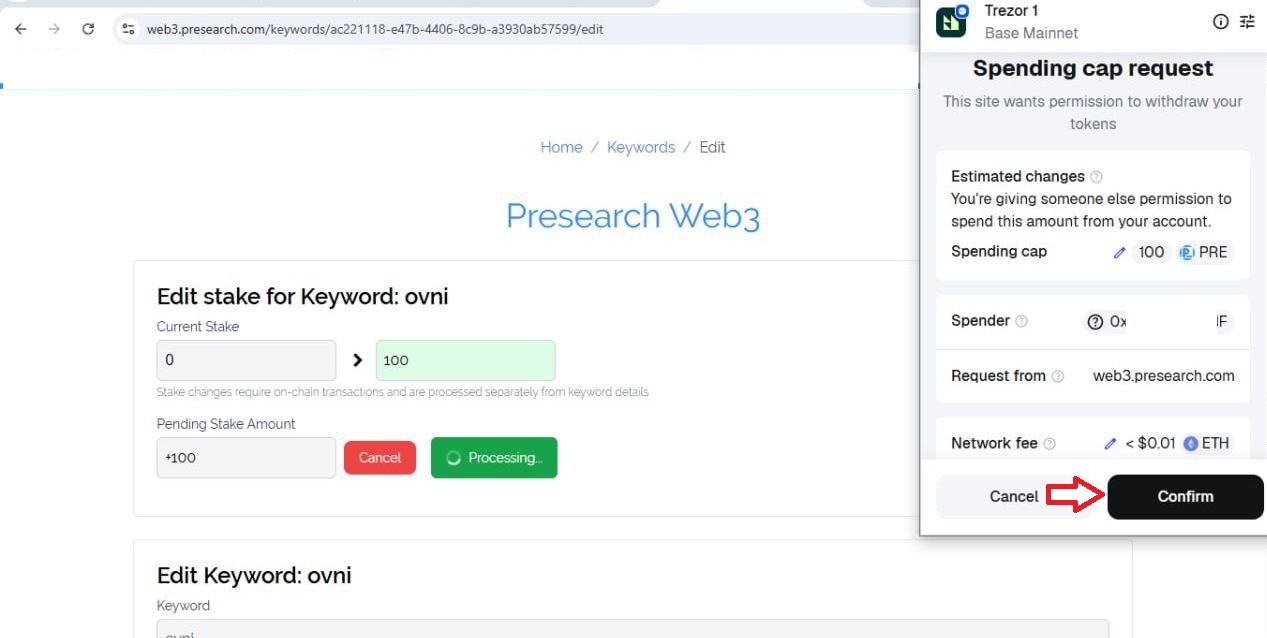
9. Confirm the transaction in your external wallet **(Metamask, coinbase wallet, ect).**

<figure><img src="https://881106330-files.gitbook.io/~/files/v0/b/gitbook-x-prod.appspot.com/o/spaces%2F-MS4taefedlYJ7UrPHAo%2Fuploads%2FtuhWuSuLeUAFZYUh0sbN%2Fcap1.jpg?alt=media&#x26;token=67afbe28-2d00-46cf-b2c0-a3b84771f60d" alt=""><figcaption></figcaption></figure>

<figure><img src="https://881106330-files.gitbook.io/~/files/v0/b/gitbook-x-prod.appspot.com/o/spaces%2F-MS4taefedlYJ7UrPHAo%2Fuploads%2F2XLx37wEpbDF9kiPUUGC%2Frepetir1.jpg?alt=media&#x26;token=6740bd24-a22f-4b8a-bef9-f0178211abc3" alt=""><figcaption></figcaption></figure>

10. You can check your Pre-Stake amount for all your keywords in your ¨**Keyword Dashboard¨**, manage your keywords in ¨**Current Keywords¨**, and you can also check the transaction in your ¨**Transfer History¨.**

<figure><img src="https://881106330-files.gitbook.io/~/files/v0/b/gitbook-x-prod.appspot.com/o/spaces%2F-MS4taefedlYJ7UrPHAo%2Fuploads%2FHtkmQR8Jy0RSTuLhgQiK%2Fselect1.jpg?alt=media&#x26;token=5bcc0e94-a4f3-4ce7-9b5b-73ce5d86f09e" alt=""><figcaption></figcaption></figure>

<figure><img src="https://881106330-files.gitbook.io/~/files/v0/b/gitbook-x-prod.appspot.com/o/spaces%2F-MS4taefedlYJ7UrPHAo%2Fuploads%2FS9ChcwBeulIzRcqwydfE%2Ftoto1.jpg?alt=media&#x26;token=fda11c11-69b5-4785-944d-84bab8369fcb" alt=""><figcaption></figcaption></figure>

11. By entering your keyword into the search engine, you will be able to see your ad in the search results.

<figure><img src="https://881106330-files.gitbook.io/~/files/v0/b/gitbook-x-prod.appspot.com/o/spaces%2F-MS4taefedlYJ7UrPHAo%2Fuploads%2FQNKbcZEjvHDFKHPIKCoe%2Fkey1.jpg?alt=media&#x26;token=e4946e88-f580-4414-a2d8-fe10c35153e7" alt=""><figcaption></figcaption></figure>

## Unstake Keyword Stake

1. On your web3 dashboard Click on Visit Dashboard within **Keyword Stake Balance.**

<figure><img src="https://881106330-files.gitbook.io/~/files/v0/b/gitbook-x-prod.appspot.com/o/spaces%2F-MS4taefedlYJ7UrPHAo%2Fuploads%2F7M63EsVNH8yVXEVzhpaW%2Fimage.png?alt=media&#x26;token=b0cdafa0-585a-4976-bdab-a8a7717bd832" alt=""><figcaption></figcaption></figure>

2. Click on cancel.

<figure><img src="https://881106330-files.gitbook.io/~/files/v0/b/gitbook-x-prod.appspot.com/o/spaces%2F-MS4taefedlYJ7UrPHAo%2Fuploads%2F6TAqWuvfYzcRhb0I1u8o%2Fcancel1.jpg?alt=media&#x26;token=532672ca-a314-42dc-be84-916432636353" alt=""><figcaption></figcaption></figure>

3. Click on Edit keyword.

<figure><img src="https://881106330-files.gitbook.io/~/files/v0/b/gitbook-x-prod.appspot.com/o/spaces%2F-MS4taefedlYJ7UrPHAo%2Fuploads%2FsNmjG8qhuuR8lmztCD9U%2Fedit1.jpg?alt=media&#x26;token=2844e5ea-e879-4161-9090-ba8e9b881124" alt=""><figcaption></figcaption></figure>

4. Set to 0 and click Update Stake.

<figure><img src="https://881106330-files.gitbook.io/~/files/v0/b/gitbook-x-prod.appspot.com/o/spaces%2F-MS4taefedlYJ7UrPHAo%2Fuploads%2FJlRfjwpA5Sn0GrlmxMn5%2Flolo1.jpg?alt=media&#x26;token=ced5ede5-3951-4521-8f8b-9013bba477ee" alt=""><figcaption></figcaption></figure>

5. Click on Unstake.

<figure><img src="https://881106330-files.gitbook.io/~/files/v0/b/gitbook-x-prod.appspot.com/o/spaces%2F-MS4taefedlYJ7UrPHAo%2Fuploads%2F93mDeJG59Qr4O7GPVhKh%2Fyoyo1.jpg?alt=media&#x26;token=f49c7b5d-2384-46b2-affb-e753bef2442f" alt=""><figcaption></figcaption></figure>

6. Confirm the transaction and you will have the tokens inside your external wallet.

<figure><img src="https://881106330-files.gitbook.io/~/files/v0/b/gitbook-x-prod.appspot.com/o/spaces%2F-MS4taefedlYJ7UrPHAo%2Fuploads%2Fc4fy0WX49HsduP5d6wnX%2Fpolo1.jpg?alt=media&#x26;token=d51891e9-abb5-475c-aeab-709a5e7d6596" alt=""><figcaption></figcaption></figure>

7. You will be able to see that it has been successfully Unstake and you will also be able to see it in the transaction history.

<figure><img src="https://881106330-files.gitbook.io/~/files/v0/b/gitbook-x-prod.appspot.com/o/spaces%2F-MS4taefedlYJ7UrPHAo%2Fuploads%2FylLX3m0JYwEMHLEoVJ8j%2Fchip1.jpg?alt=media&#x26;token=3c919350-6ac9-499b-af15-f316b5fdc327" alt=""><figcaption></figcaption></figure>

<figure><img src="https://881106330-files.gitbook.io/~/files/v0/b/gitbook-x-prod.appspot.com/o/spaces%2F-MS4taefedlYJ7UrPHAo%2Fuploads%2FjcbraoxCvTdAk8qOHDlj%2Flo1.jpg?alt=media&#x26;token=a67a15e9-c307-4569-aa22-250a72f74b90" alt=""><figcaption></figcaption></figure>

8. Go to **¨Current Keywords¨**, search for the keyword, and click on cancel.

<figure><img src="https://881106330-files.gitbook.io/~/files/v0/b/gitbook-x-prod.appspot.com/o/spaces%2F-MS4taefedlYJ7UrPHAo%2Fuploads%2FfvrBJFRo1rYZYwzhlriW%2Fliro1.jpg?alt=media&#x26;token=3bb0cd2f-2a04-4534-bef8-58f182d59cec" alt=""><figcaption></figcaption></figure>

9. Finally, click on delete keyword.

<figure><img src="https://881106330-files.gitbook.io/~/files/v0/b/gitbook-x-prod.appspot.com/o/spaces%2F-MS4taefedlYJ7UrPHAo%2Fuploads%2Fqe9V0OP06yZJz0Q6O78J%2Fkey1.jpg?alt=media&#x26;token=c2d69495-e2e8-4708-bda8-707b13185036" alt=""><figcaption></figcaption></figure>

<br>